How to Set Up a Custom 2, 3 or 4-Week Custody Schedule
Last updated: November 2026
Most custody schedules repeat every two weeks, and many of them are close to a named pattern without matching it. Maybe Thursday moves with the weekend instead of staying with one parent, or one weekday belongs to the same parent every week because of an activity. This guide shows how to write that kind of schedule as a grid of days that repeats every two, three or four weeks, using a two-week worked example and the exact steps to set it up in SharedAnchor.
When a standard schedule does not fit
The named equal-time patterns, such as 2-2-3, 2-2-5-5 and week-on/week-off, each fix which days move between homes. If you are still choosing between those, which 50/50 custody schedule works lays them side by side.
A custom schedule is the right tool when any of these is true:
- Your schedule repeats every two weeks, but the days each parent has match no named pattern.
- One parent has the same weekday every week, while a longer stretch alternates.
- Your plan includes a day when the children change homes partway through, at a set handoff time.
SharedAnchor's custom grid also repeats every three or four weeks, which helps when a parent works a longer rotation.
A worked example: a two-week schedule with an alternating stretch
Here is a made-up schedule for two parents, Alex and Jordan. Alex has Monday and Tuesday every week, and Jordan has Wednesday every week. The stretch from Thursday through Sunday alternates, so Jordan has it in week 1 and Alex has it in week 2.
Written out Monday to Sunday, the two weeks look like this:
- Week 1: Alex has Monday and Tuesday. Jordan has Wednesday through Sunday.
- Week 2: Alex has Monday and Tuesday. Jordan has Wednesday. Alex has Thursday through Sunday.
Over the 14 days, Alex has 8 days and Jordan has 6. Then week 1 starts again. This looks like 2-2-5-5, but in 2-2-5-5 Thursday always stays with the same parent, and here Thursday moves with the weekend.
How the example looks in the SharedAnchor grid
Each week in the SharedAnchor grid runs from Sunday to Saturday, so the same schedule shifts by one day when you enter it:
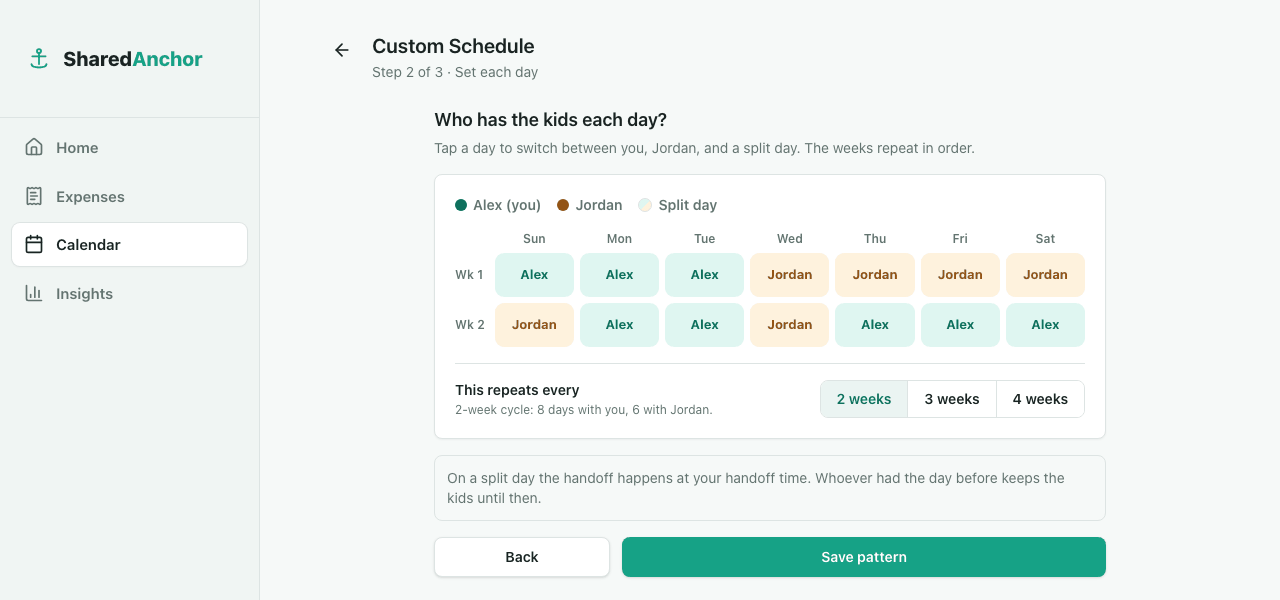
- Wk 1: Alex has Sunday, Monday and Tuesday. Jordan has Wednesday through Saturday.
- Wk 2: Jordan has Sunday. Alex has Monday and Tuesday. Jordan has Wednesday. Alex has Thursday through Saturday.
The grid's first Sunday goes to Alex, because in the repeating schedule that Sunday ends Alex's Thursday-to-Sunday stretch from week 2. Each parent keeps the same days, and the grid's summary line still reads 8 days with you and 6 with Jordan.
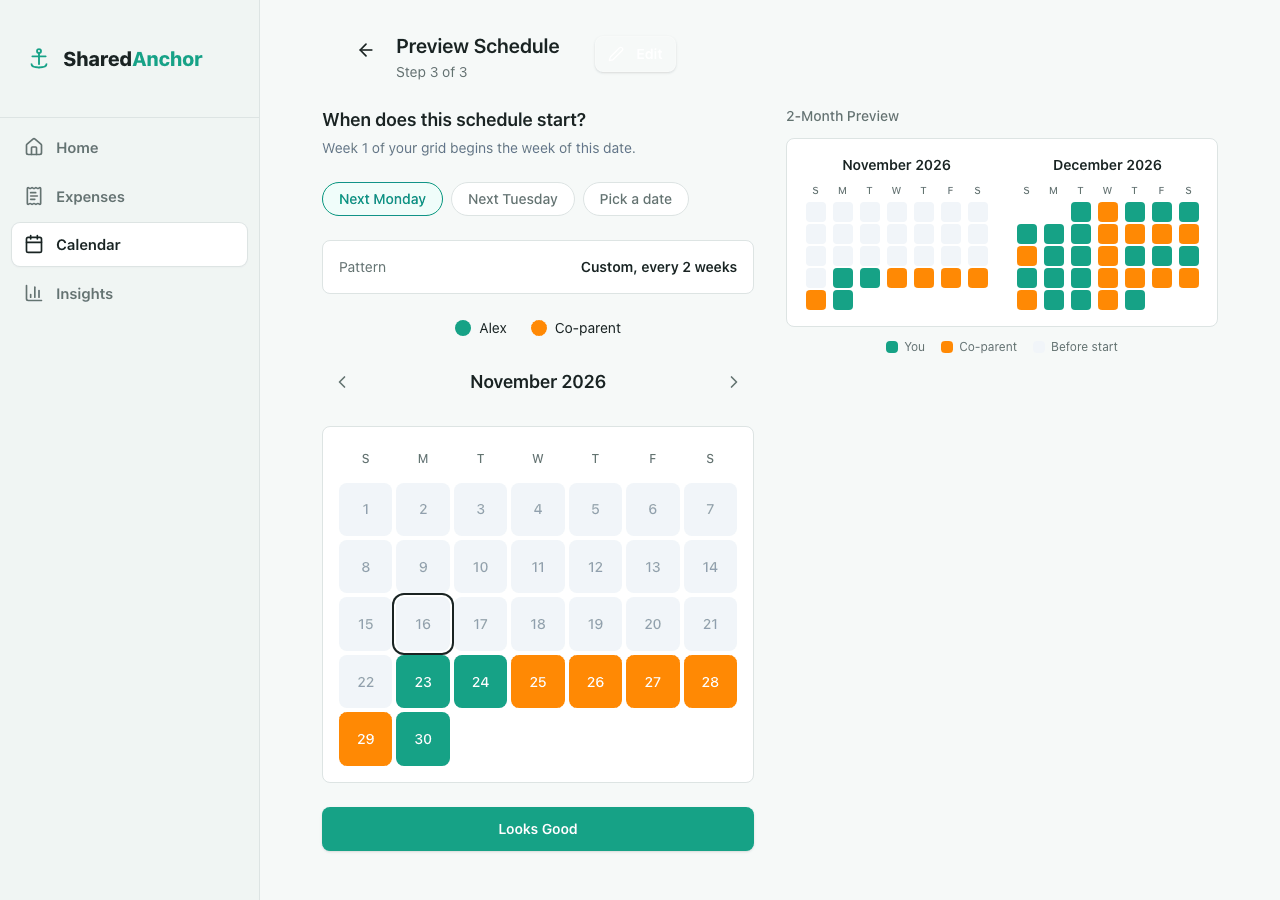
Week 1 of the grid is the Sunday-to-Saturday week that holds your start date. If your start date is a Monday, the calendar leaves the Sunday before that Monday empty, because it falls before the schedule begins. From the second cycle on, the calendar gives that week-1 Sunday to Alex, as the grid shows.
Set up the grid on the SharedAnchor website
Build the grid on the SharedAnchor website at app.sharedanchor.com. The phone app version in the app stores today (1.0.6) does not include the grid builder yet.
- Sign in on the website and open Calendar. Under Set up your shared schedule, find Set up manually and choose Start. If you already have a schedule and want to change it, choose Replace Schedule on the calendar instead.
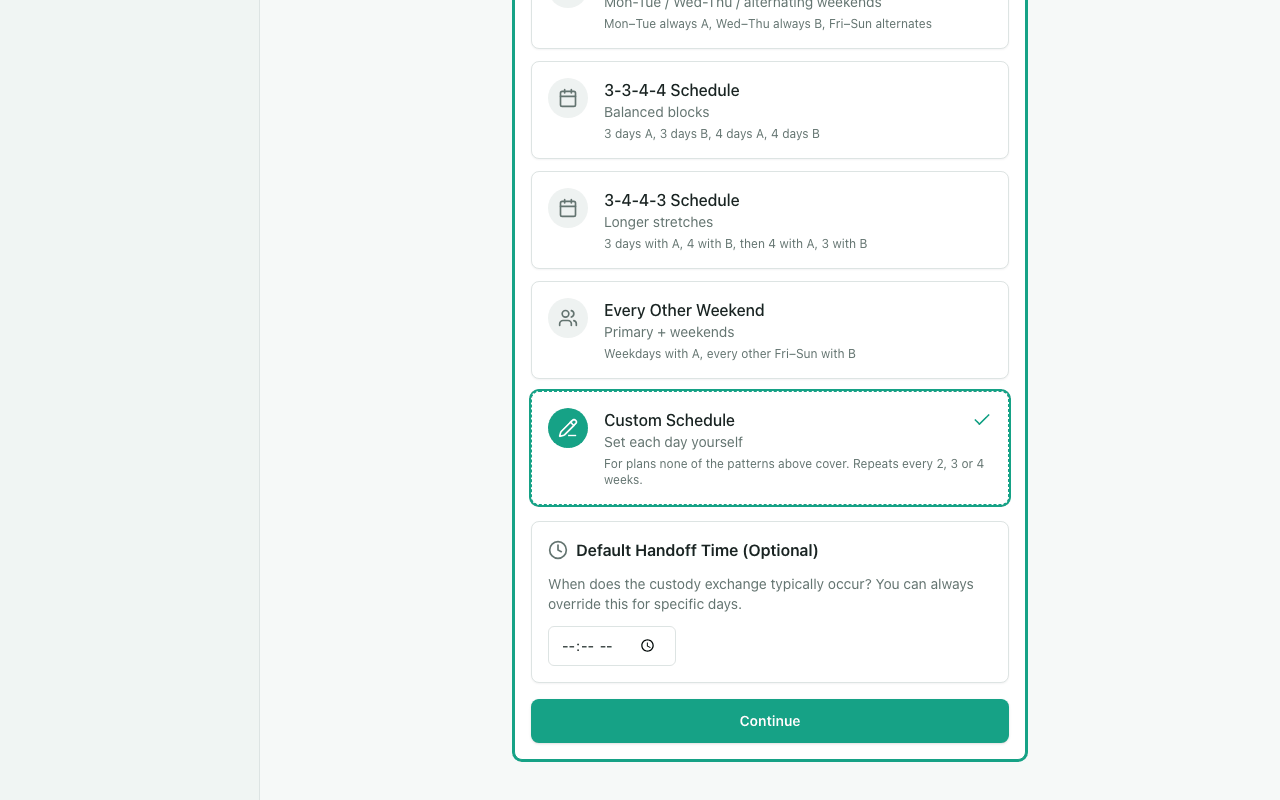
- On the next page, choose Set up manually, then choose the Custom Schedule card, labelled "Set each day yourself." If your plan names a handoff time, enter it in Default Handoff Time (Optional), because split days use it. Then choose Continue.
- On the Custom Schedule page (Step 2 of 3 · Set each day), the question is Who has the kids each day? Under This repeats every, choose 2 weeks, or 3 weeks or 4 weeks for a longer rotation. Adding a week copies week 1, so you only change the days that differ.
- The grid opens with a sample pattern that includes one split day, so set every day to match your plan before you save. Tap each day to set it. Each tap moves the day from you, to your co-parent, to a split day, and back to you. On a split day the handoff happens at your handoff time, and whoever had the day before keeps the children until then.
- Check the summary line under the grid. For the example it reads "2-week cycle: 8 days with you, 6 with Jordan." Then choose Save pattern.
- On Preview Schedule (Step 3 of 3), answer When does this schedule start? with Next Monday, Next Tuesday or Pick a date. Week 1 of your grid begins the week of this date, and the date cannot be in the past. Days before the start date have no custody owner. Look over the month preview, then choose Looks Good.
- On Confirm Calendar, choose Send to your co-parent's name, for example Send to Jordan. If your co-parent has not joined SharedAnchor yet, the button says Save to my calendar instead, and the schedule stays visible only to you until you send it to them.
When you replace an existing schedule, the same steps apply with a few names changed. Continue becomes Continue to Review. The preview page is called Preview Schedule Change, it asks When should the new schedule start?, and Looks Good becomes Review Change. The confirm page is called Confirm Schedule Change, and its send button becomes Send Change to your co-parent's name.
If you uploaded or pasted a parenting plan and SharedAnchor could not match it to a named pattern, it may fill the grid for you. In that case the page asks you to Check the days we filled in, and days it was less sure about are outlined and marked Please confirm until you tap them.
What your co-parent does next
A schedule you send is a proposal, and it becomes your shared calendar only after your co-parent accepts it. Until then, your calendar shows that your co-parent has not confirmed yet.
Your co-parent reviews it on the website:
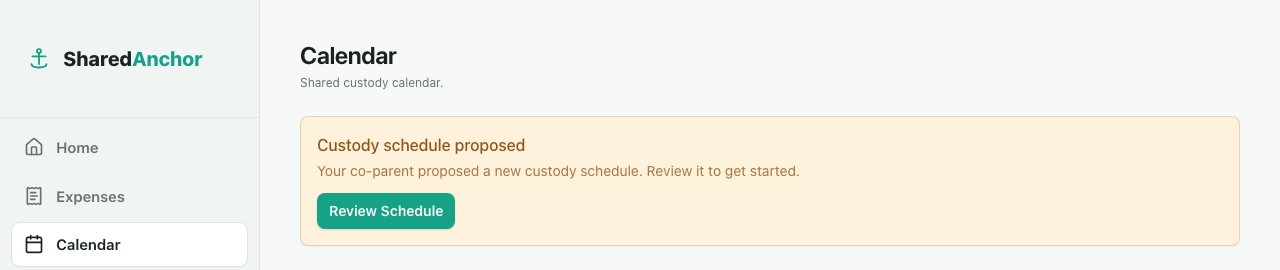
- They open Calendar and see Custody schedule proposed, then choose Review Schedule.
- On Review Proposed Schedule they see the schedule type, for example "Custom, every 2 weeks," the effective date, and a month-by-month preview of who has which days.
- They choose Accept Schedule to make it the active calendar for both of you, or Reject to turn it down.
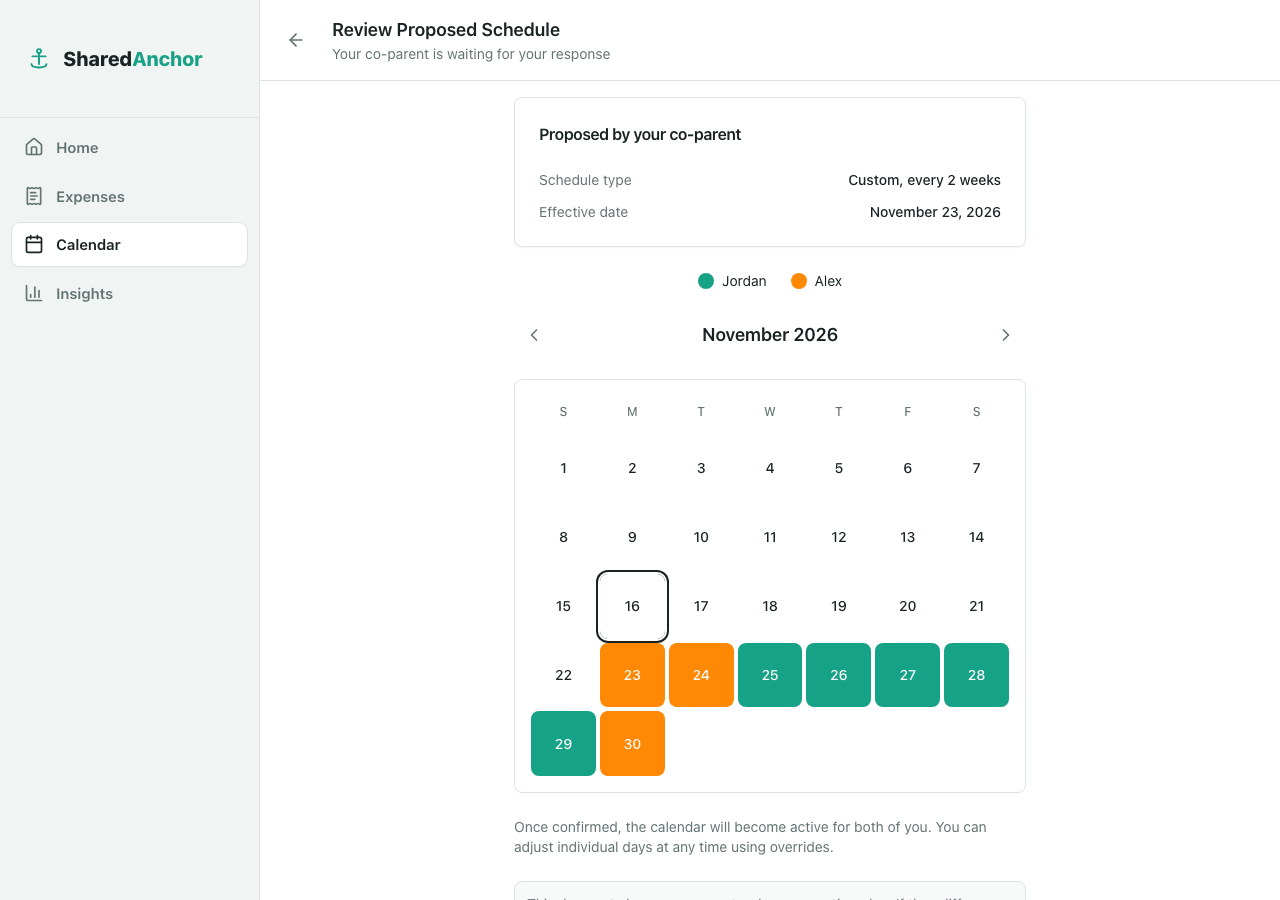
If they reject it, nothing goes live, and you can set up and send a new schedule. If the start date passes before your co-parent accepts, the proposal can no longer be accepted. You can then send it again with a later start date.
After your co-parent accepts
Once the schedule is accepted, SharedAnchor fills the calendar forward from the grid, and both of you see the same days. The calendar then offers Change Specific Days for one-off changes, Holiday and Break Rules for holidays and school breaks, and Replace Schedule if the regular pattern itself changes.
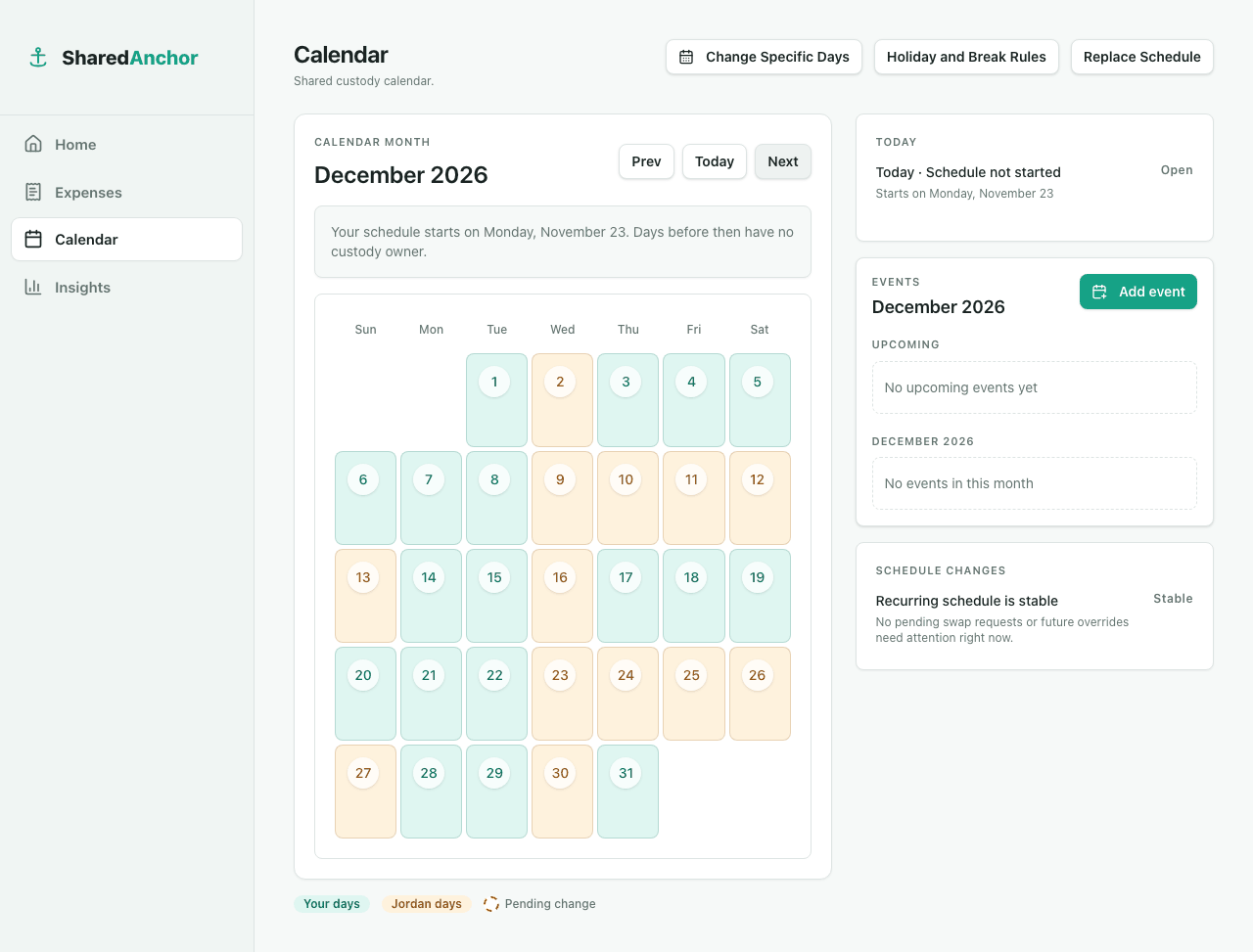
Holidays are set up separately through Holiday and Break Rules, and a saved holiday rule applies on its dates on top of the regular grid. The custody calendar help covers swaps, single-day changes and holiday rules in more detail.
Common mistakes with a custom schedule
- Entering the plan Monday to Sunday. The grid starts each week on Sunday, so move the last day of your plan's cycle to the front, as in the example above. This works the same for a 2, 3 or 4 week plan.
- Starting on the wrong week. Week 1 is the week that holds your start date, so pick a start date in the week your plan treats as week 1.
- Forgetting the handoff time. A split day hands off at your default handoff time, so set it during setup if your plan names one.
- Editing the grid for a one-time change. If one weekend trades hands, use Change Specific Days on the calendar, which keeps the repeating schedule intact and records what changed.
If you are writing the schedule into a parenting plan for the first time, the parenting plan template guide covers what else the plan usually needs to say.
Questions co-parents ask
Can a custom schedule repeat every 3 or 4 weeks? Yes. Choose 3 weeks or 4 weeks under This repeats every, and each new week starts as a copy of week 1. Longer cycles, such as 5 or 6 weeks, are not available in the grid.
Can I build the custom grid on my phone? The phone app version in the app stores today (1.0.6) does not include the grid builder, so use the website at app.sharedanchor.com. Once the schedule is accepted, both of you can see it on the calendar.
Does my co-parent have to accept the custom schedule? Yes. When you are paired with a co-parent, every new schedule becomes active only after they choose Accept Schedule.
SharedAnchor organizes co-parenting schedules and records. It is not legal advice; custody schedules and overnight counts have legal consequences, so consult a licensed family-law attorney for your situation.
Want your custom schedule and every swap in one shared record? See how SharedAnchor pricing works - one plan covers both co-parents.